2. Logging into your AWS environment#
2.1. Introduction#
You will use a real AWS account to work through the following material. Different AWS accounts beloning to the Divio AWS Organization have already been prepared and are ready to be used. All the information required to access the accounts can be retrieved from 1Password.
These accounts are organized in a tree-like structure as follows:

To access the specific hackathon subaccount, we will have to first log into the topmost divio-billing (root) account and from there assume a role within the preferred subaccount. This process differs for the web console and for the CLI, as explained further in the next subsections.
2.2. Web Console Login#
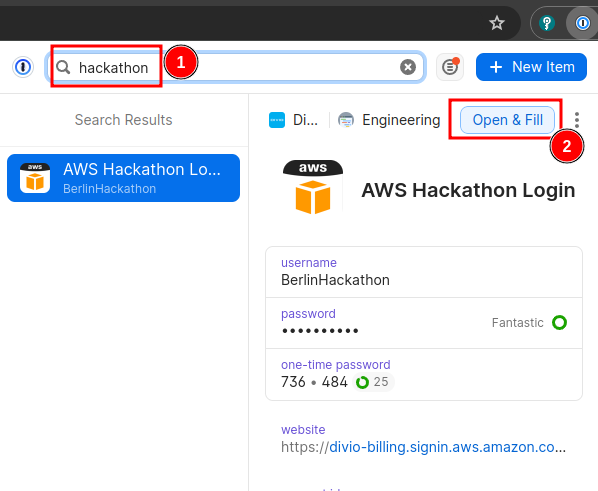
Look for an item in 1Password called AWS Hackathon Login (1) and then click
on Open & Fill (2) as shown below:
After logging in you should be greeted with the AWS Console dashboard, and multiple Access denied errors. This is because the user you just used does not have any permissions except being able to assume a role in a different AWS account.
We will perform all the work part of this guide on such a sub-account. Each group can pick an account that is not being used and note down its account ID.
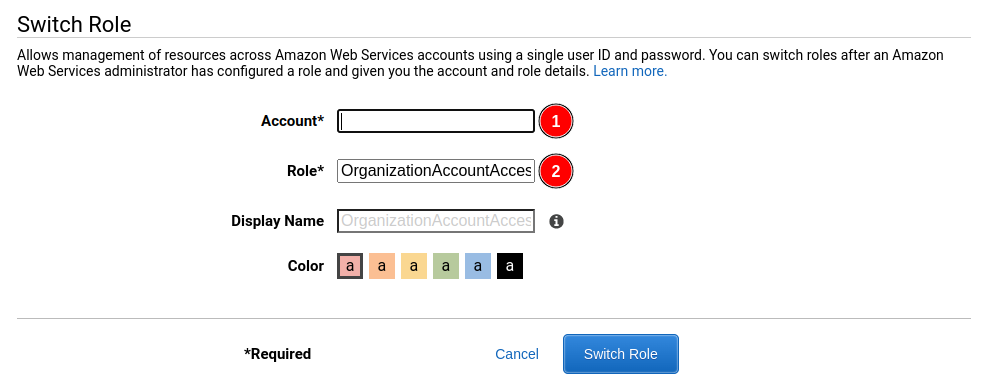
To access the account, we will assume the OrganizationAccountAccessRole in
the selected account. To do so, open the dropdown menu under the username in
the top right corner of the web console and then click on “Switch Role”. On the
newly opened page, enter the ID of the account you picked (1) and fill out the
role field (2) as in the following image:
Congratulations, you are now fully logged into the web console for the account that you will work on in the next sections of the present guide.
2.3. CLI Setup#
The process for the CLI authentication is conceptually similar as what has been shown for the web console login. In this case, we will use an AWS Access Key of the root account to request a set of temporary credentials for an assumed role within the hackathon subaccount.
To do so, edit the .etc/aws/credentials.ini file inside the deployment repo
and add the following configuration:
[divio-billing-hackathon]
aws_access_key_id=<access key ID from 1Password>
aws_secret_access_key=<secret access key from 1Password>

[divio-hackathon]
source_profile = divio-billing-hackathon
role_arn = arn:aws:iam::<account id>:role/OrganizationAccountAccessRole
region = eu-central-1
You can check if your setup is working correctly by issuing a CLI command like:
aws --profile=divio-hackathon sts get-caller-identity
Note
The configuration method for the selected credentials as shown here is not secure. You now have a set of admin credentials stored in plain text on your machine. The production setup uses short-lived sessions gathered via SSO (OneLogin) to ensure that no plain-text credentials are ever needed.
2.4. DNSimple Setup#
Warning
This is far from ideal and uses a production account. Handle with due care.
Head over to https://dnsimple.com/user, log in with the credentials to be found
on 1Password, and click on Add in the User access tokens section. Give it a
descriptive name (it should at the very least contain your name) and then click
on Generate token. Finally, dump it into ~/.dnsimple following the format
below:
[DNSimple]
# https://dnsimple.com/user > <token name>
api_token = <token>